

Product Guides
Document Requests
Request documents from partners and respond to incoming requests
Document requests are how parent organizations request specific documents from their third parties, and how third parties respond.
Creating Document Requests
Section titled “Creating Document Requests”Parent organizations: Use document requests to collect compliance documents from your partners.
Anatomy of a Document Request
Section titled “Anatomy of a Document Request”Understanding the parts of a document request:
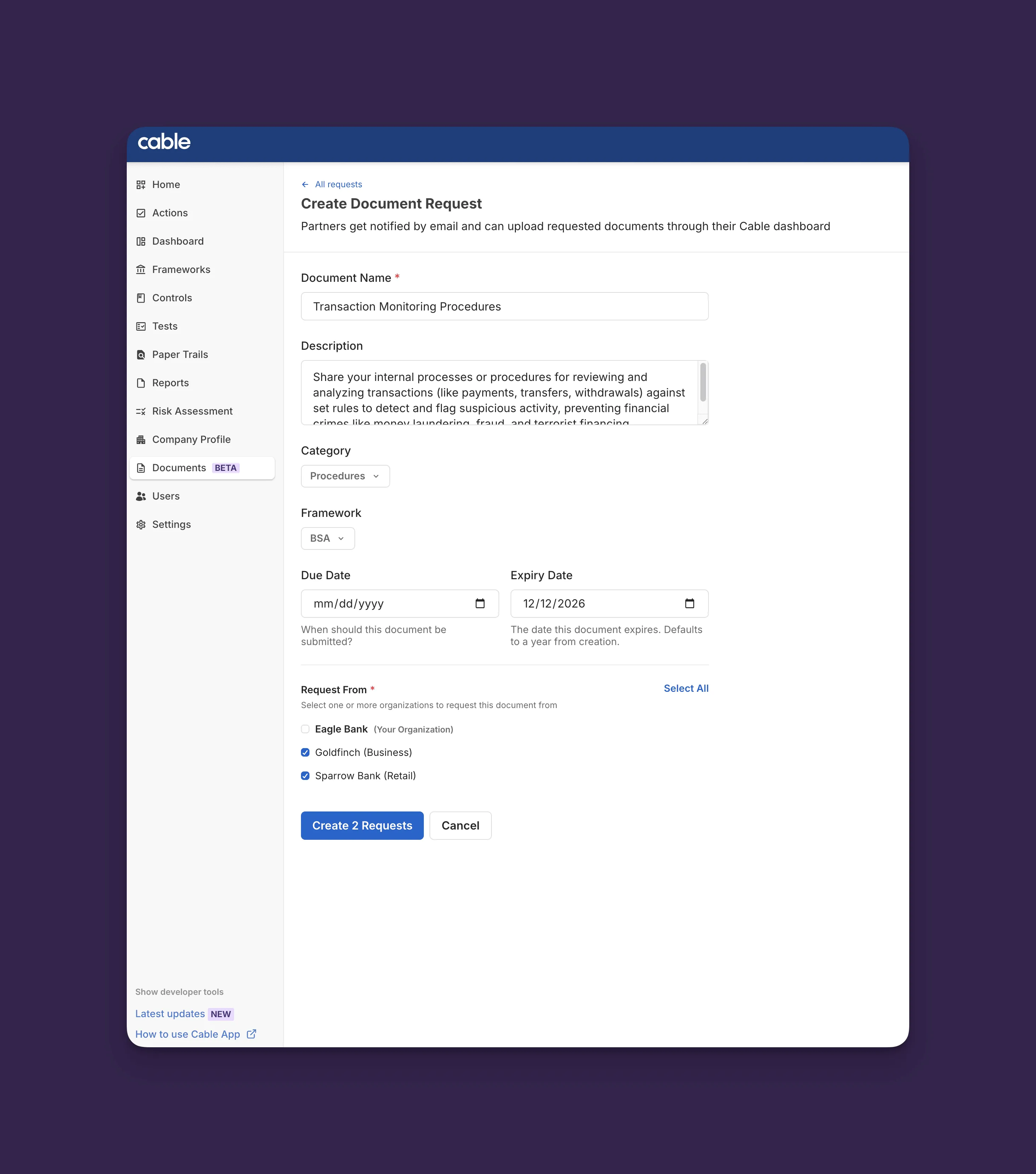
- Document Name - What is being requested
- Description - Detailed requirements and expectations from requesting organization
- Organization - Which partner must fulfill this request
- Status - Current state (see status reference)
- Due Date - Deadline for submission
- Expiration Date - When approved document expires
- Owner - Person responsible for fulfilling (optional, can be assigned by either org)
- Attached Documents - Submitted files with version history
- Comments - Collaboration thread with @mentions and full history
- History - Complete audit trail of all status changes and actions
To create a document request:
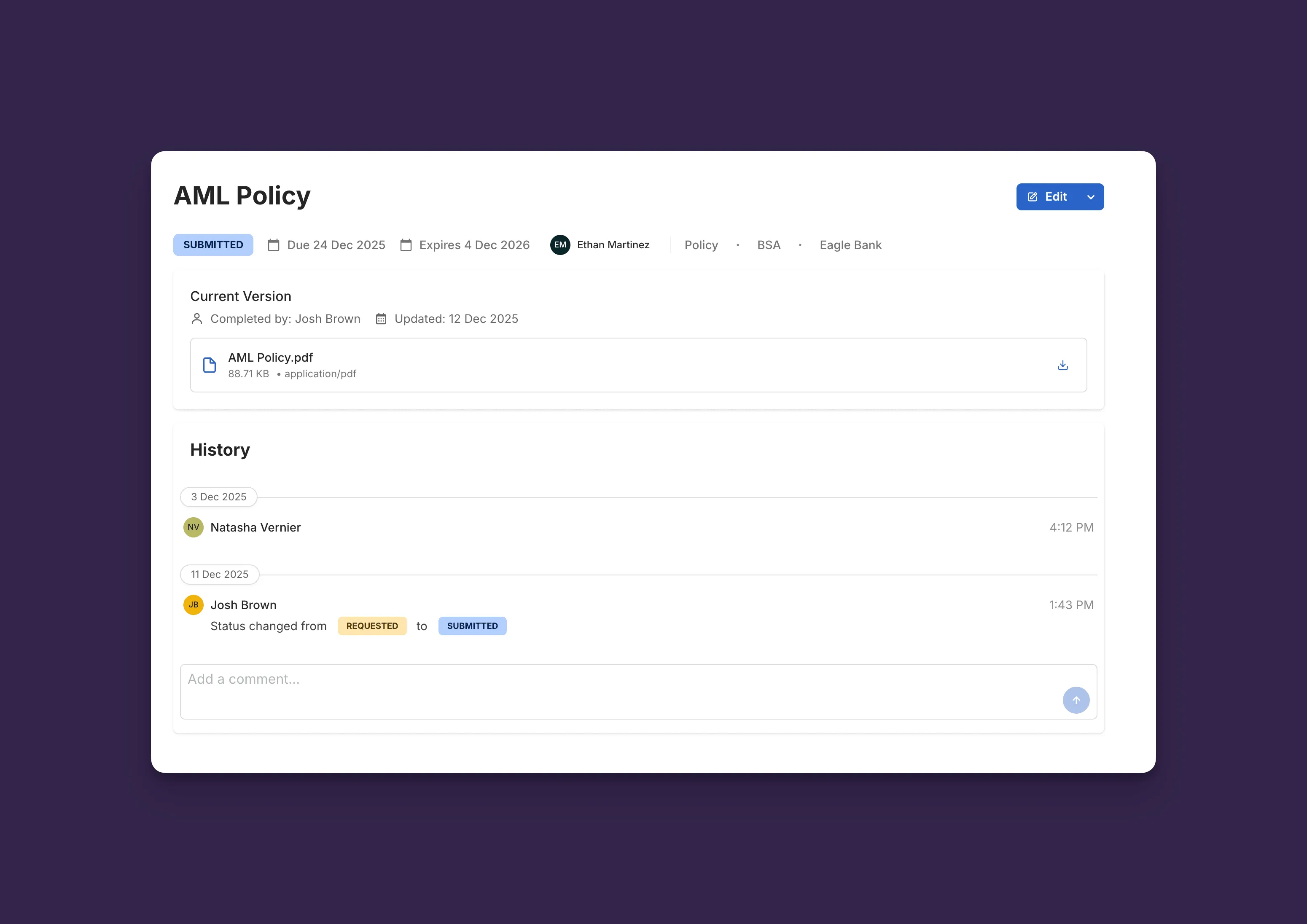
- Navigate to Documents → Requests
- Click Request Document
- Fill in the request details:
- Document Name (required) - What you’re requesting (e.g., “AML Policy”)
- Description (optional) - Detailed requirements about what must be included
- Category (optional) - Policy, Procedure, Governance, IT/Security, HR, Finance, or Other
- Due Date (optional) - When the document is due
- Expiration Date (optional) - When the approved document expires (defaults to 1 year)
- Select which partner organizations should receive this request
- Click Create X Request(s) (where X is the number of organizations selected)
💡 Tip: Include detailed descriptions of what you need. For example, if requesting a policy, list specific sections or topics that must be covered. This reduces back-and-forth and ensures you get the right documents.
✅ Success: You’ll see “Created [X] request(s) successfully” and you’ll be returned to the Requests tab.
What happens next:
- Partners receive notification of the request
- Request appears in their Documents → Requests tab with REQUESTED status
- You can track status from your Documents → Requests tab
Responding to Document Requests
Section titled “Responding to Document Requests”When you receive a document request, you have two ways to fulfill it.
View Incoming Requests
Section titled “View Incoming Requests”Navigate to Documents → Requests to see all requests for your organization. Each request shows:
- Document name and description
- Requesting organization
- Status (see Understanding Request Status)
- Due date
- Expiration date (when applicable)
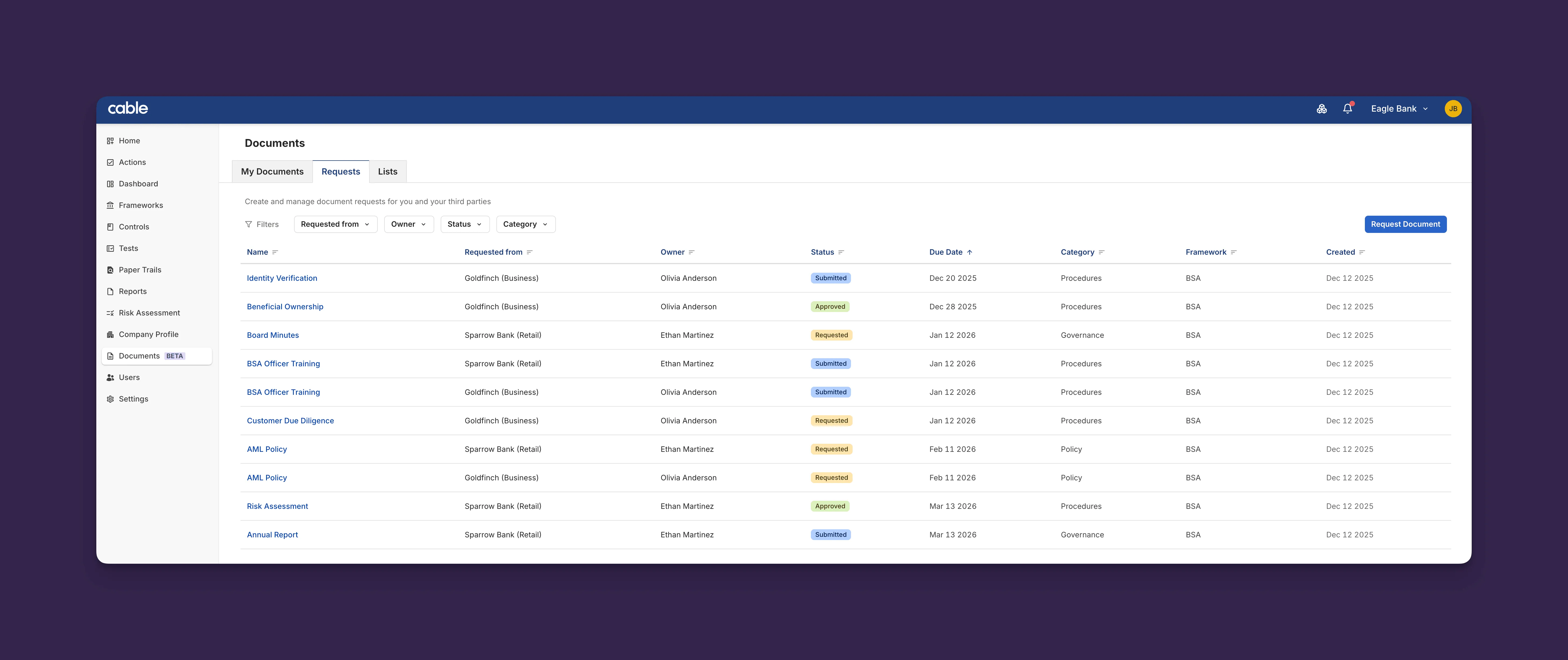
Requests are initially marked with color-coded status badges:
- REQUESTED - Waiting for your response
- OVERDUE - Past due date
Option 1: Attach Existing Document
Section titled “Option 1: Attach Existing Document”If you already have the document in your library:
- Click on the request
- Click Attach from Library
- Select the document from your library
- Click Attach
✅ Success: You’ll see “Submit successful - Document request submitted successfully.” Status automatically changes to SUBMITTED.
💡 Tip: Always check your Document Library first before uploading a new document. If you already have the document in your library, simply attach it to save time and maintain version consistency.
Option 2: Upload New Document
Section titled “Option 2: Upload New Document”If you don’t have the document in your library:
- Click on the request
- Click Upload new version
- Drag and drop your files or click to browse
- Add document details (name, description, notes)
- Click Submit file
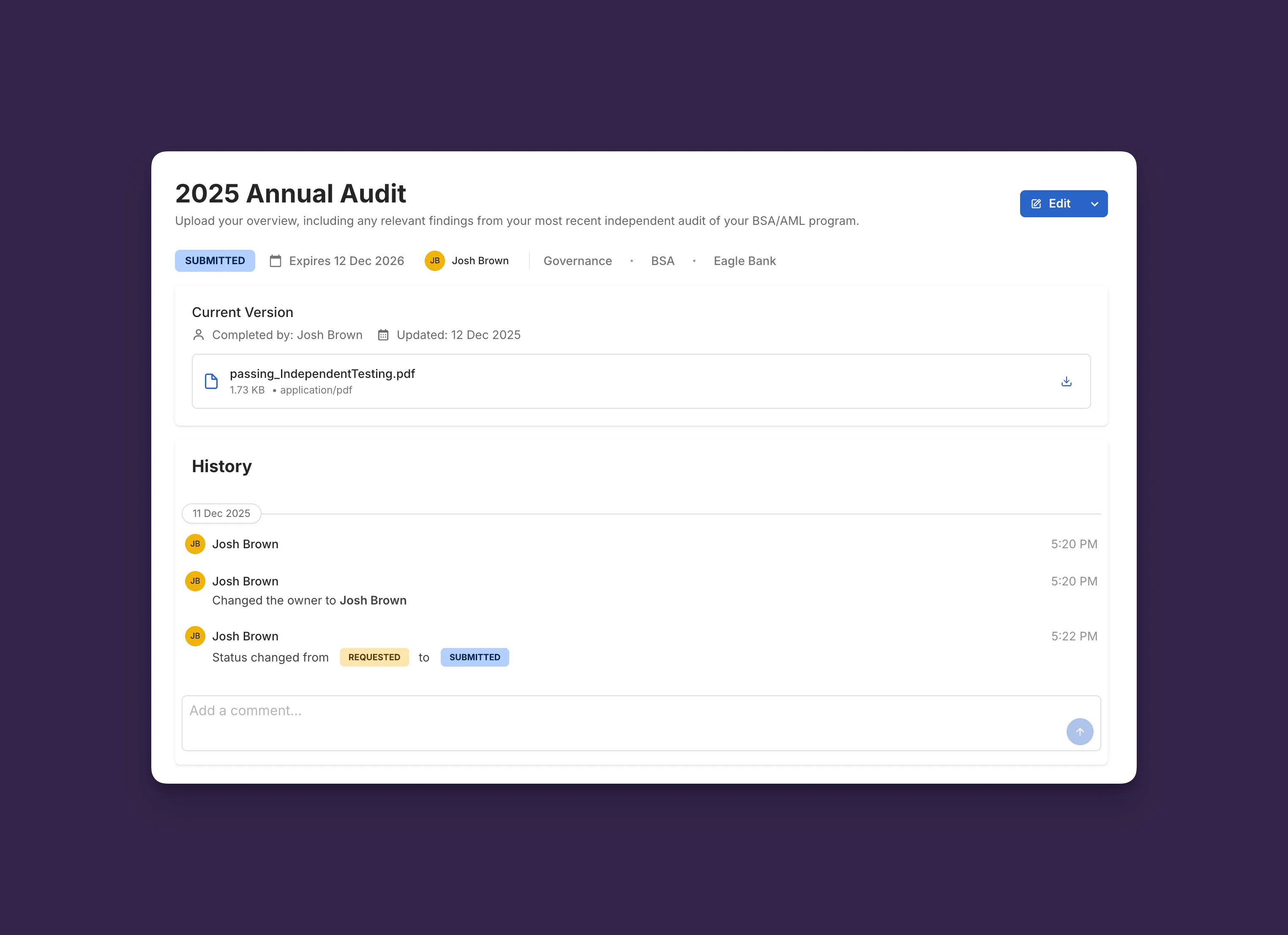
✅ Success: You’ll see “Upload successful - Documents have been uploaded successfully.” Status automatically changes to SUBMITTED.
The document is also added to your library for future use.
Adding Comments and Questions
Section titled “Adding Comments and Questions”Need clarification? Add a comment to the request:
- Open the document request
- Scroll to the History section
- Type your comment or question
- Use
@usernameto mention specific people - Click Post Comment
Both your organization and the requesting organization can see and respond to comments.
Reviewing and Approving Requests
Section titled “Reviewing and Approving Requests”After your third party submits a document, review and approve it.
Track Request Status
Section titled “Track Request Status”Navigate to Documents → Requests to see all requests you’ve created. Filter by:
- Status (Submitted, Reviewed, Approved, etc.)
- Owner
- Requestor
- Category
Requests awaiting your review show SUBMITTED status.
Review and Approve a Submission
Section titled “Review and Approve a Submission”To approve a submitted document:
- Click on the request with SUBMITTED status
- View the attached documents and files
- Review the document content
- Select Approve from the dropdown in the top right of the page
✅ Success: You’ll see “Approve successful - Document request approved successfully.” Status changes to APPROVED.
To request changes:
- Click Request Changes
- Add a comment explaining what needs to be revised
- Click Submit
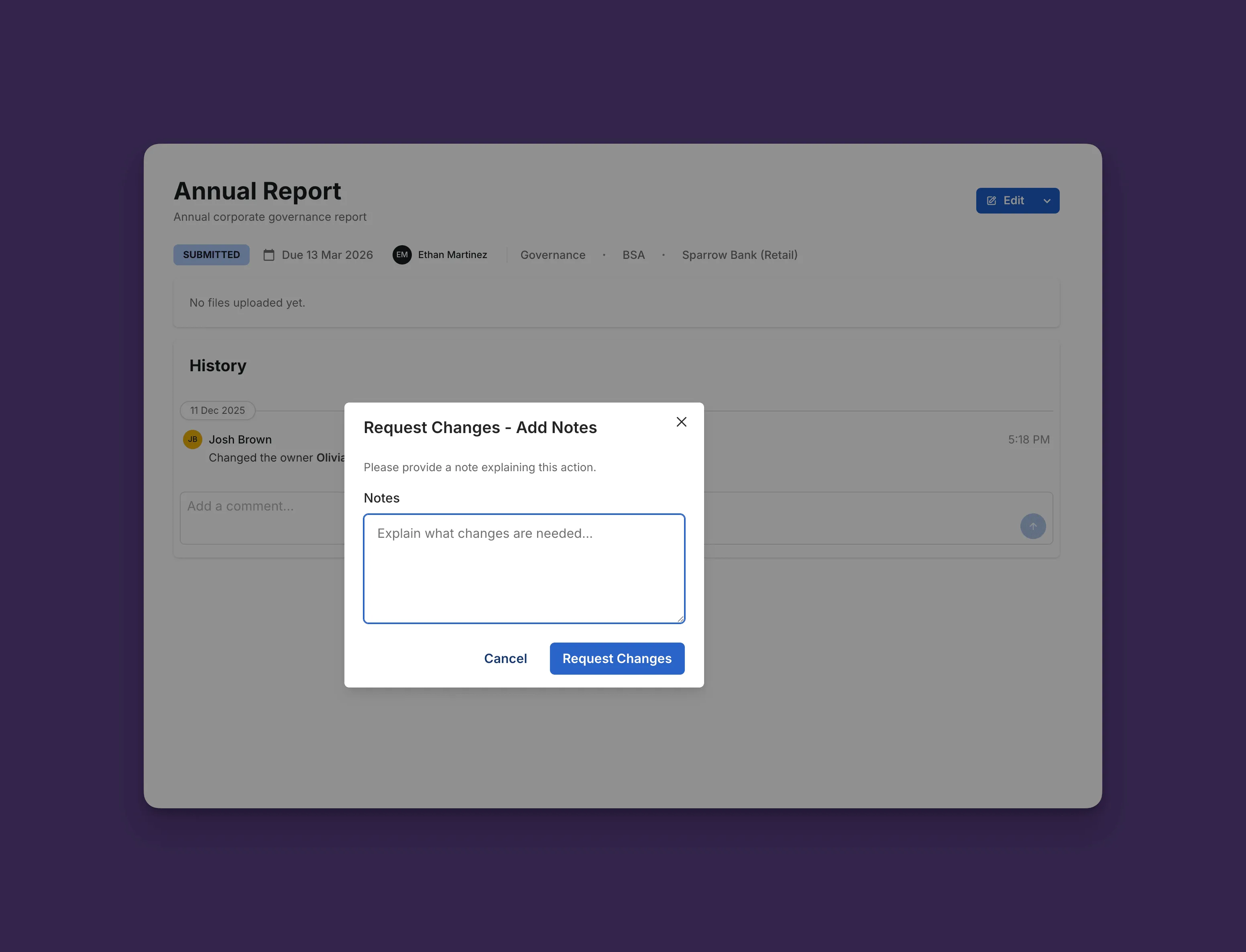
Status changes to REQUESTED and partner is notified. They can then upload a new version or attach a different document.
Understanding Request Status
Section titled “Understanding Request Status”Document requests move through different statuses based on actions from both organizations:
| Status | Description | Visual Indicator | Who Can Change |
|---|---|---|---|
| Requested | Initial state when request is created, or changes were requested | REQUESTED | Parent org creates |
| Submitted | Partner has provided a document | SUBMITTED | Child org (automatic on upload/attach) |
| Approved | Document meets requirements | APPROVED | Parent org |
| Not Provided | Partner cannot fulfill the request | NOT_PROVIDED | Child org |
| Overdue | Past due date without submission | OVERDUE | System (automatic) |
| Expired | Approved document is past expiration date | EXPIRED | System (automatic) |