

Product Guides
My Documents
Build and maintain your organization's compliance document collection
My Documents is where you organize your own compliance documents.
Creating Documents
Section titled “Creating Documents”To create a document:
- Navigate to My Documents
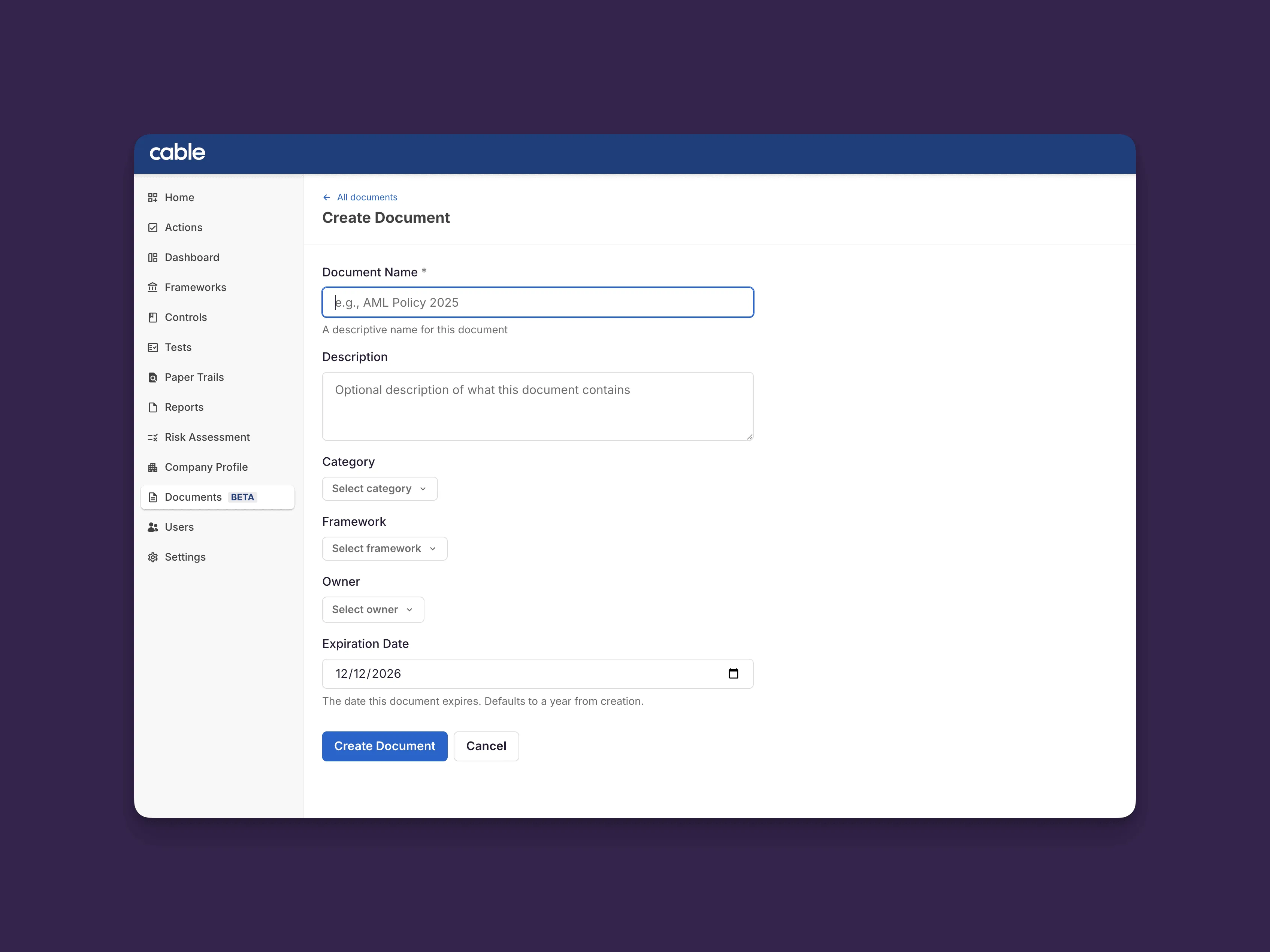
- Click Create Document
- Fill in the document details:
- Name - Clear, descriptive name (e.g., “AML Policy 2025”)
- Description - Additional context about the document
- Category - Select from Policy, Procedure, Governance, IT/Security, HR, Finance, or Other
- Expiration Date (optional) - Set when the document needs renewal
- Owner (optional) - Assign someone responsible for maintaining this document
- Upload your files by dragging and dropping or clicking to browse
- Click Create
✅ Success: You’ll see “Upload successful - Documents have been uploaded successfully” and your document will appear in the Library tab.
💡 Tip: Build your document library proactively before requests arrive. This makes responding to external requests faster and ensures you always have up-to-date documents ready to share.
Managing Document Versions
Section titled “Managing Document Versions”Documents in Cable maintain a complete version history. Every time you upload new files, a new version is created.
When to create a new version (upload new files):
- Policy is updated with new regulatory requirements
- Document content changes
- Files are added or replaced
When to update metadata (change details about your document):
- Changing the document name
- Updating the description
- Adjusting expiration date
- Reassigning the owner
Adding a New Version
Section titled “Adding a New Version”To upload a new version of an existing document:
- Navigate to Documents → Library
- Click on the document you want to update
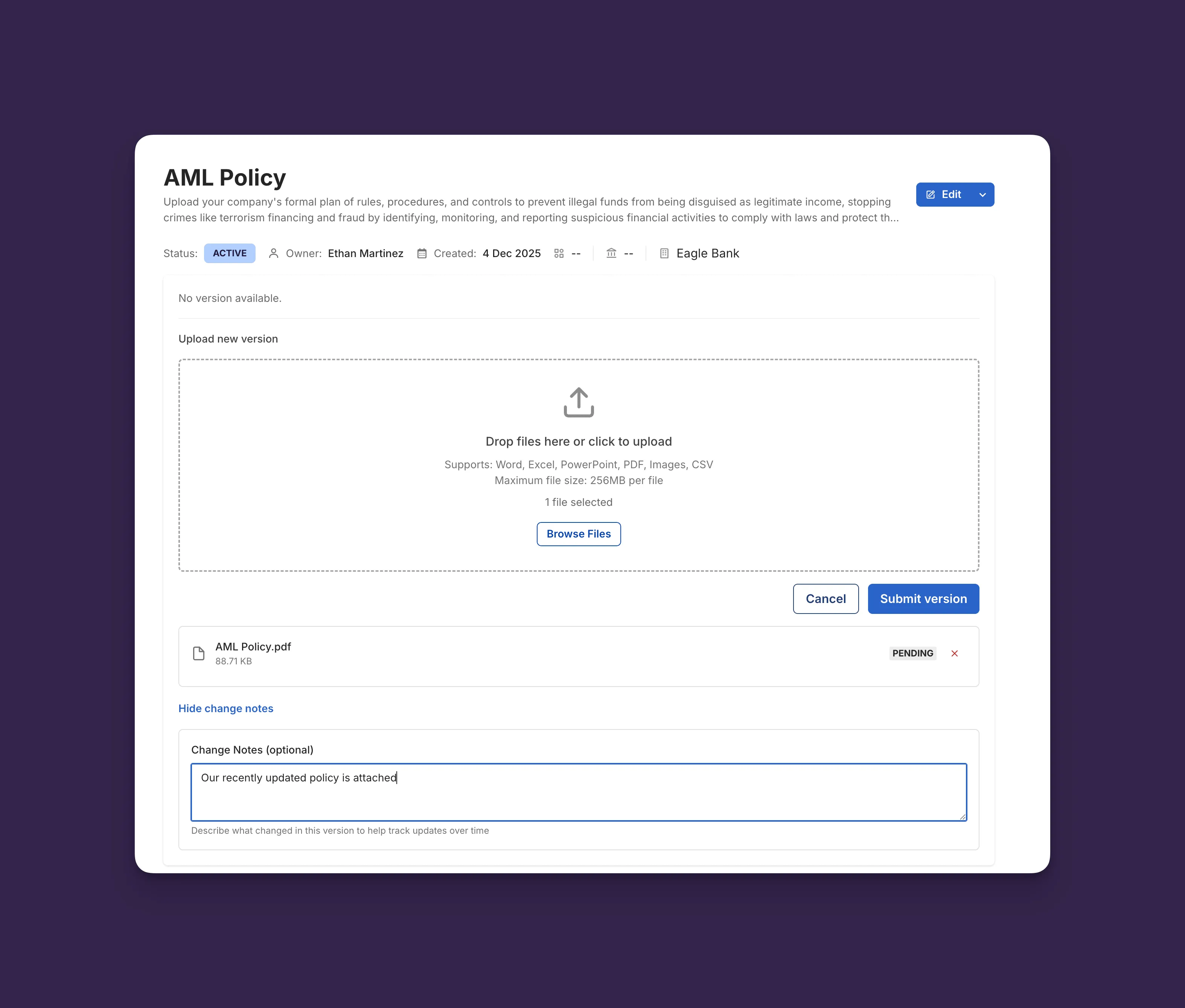
- Click Upload New Version
- Upload your updated files
- Add Version Notes describing what changed (e.g., “Updated Section 3.2 per new regulations”)
- Click Submit Version
✅ Success: You’ll see “Version uploaded - New document version has been uploaded successfully.” All linked document requests automatically show the new version.
💡 Tip: Add descriptive version notes when updating documents. This creates a clear audit trail for compliance purposes and helps partners understand what changed.
Viewing Version History
Section titled “Viewing Version History”To see all versions of a document:
- Click on a document in your Library
- Click Show other versions
- Each version shows:
- Upload date and time
- Who uploaded it
- Version notes
- Attached files
All versions are preserved forever for compliance and audit purposes.
Organizing Your Library
Section titled “Organizing Your Library”Using Categories
Section titled “Using Categories”Categories help you organize and filter documents. Choose the category that best fits:
- Policy - Governance policies (AML, KYC, Privacy, etc.)
- Procedure - Standard operating procedures
- Governance - Board minutes, governance documents
- IT/Security - Technical security documentation
- HR - Human resources documents
- Finance - Financial statements, audit reports
- Other - Everything else
💡 Tip: Use consistent naming conventions for documents across your organization (e.g., “AML Policy 2025” rather than “policy_final_v2_FINAL”). This makes searching and filtering much easier.
Assigning Owners
Section titled “Assigning Owners”Assign an owner to make someone responsible for keeping a document up-to-date:
- Open the document detail page
- Click Assign Owner
- Select a user from your organization
- They’ll be notified of the assignment
✅ Success: You’ll see “[User name] is now the owner.”
Setting Expiration Dates
Section titled “Setting Expiration Dates”For time-sensitive documents like annual policies:
- Set an Expiration Date when creating or editing a document
- Cable will mark documents as EXPIRED after this date
- Use this as a reminder to review and update the document
Archiving Documents
Section titled “Archiving Documents”To hide old or outdated documents without deleting them:
- Click the three dots on a document’s actions
- Select Archive
- Confirm the action
Archived documents:
- Can still be viewed by filtering for archived items
- Preserve all version history
- Can be unarchived later if needed with the same process
✅ Success: You’ll see “Document archived - The document has been archived successfully.”