

Product Guides
Document Lists
Group templates and send bulk requests to multiple partners
Document lists let you group individual documents together and request them all at once from multiple partners.
What are Document Lists?
Section titled “What are Document Lists?”A document list is a collection of documents that are commonly requested together. Examples:
- “Q1 2025 Compliance Package” - Quarterly required documents
- “KYC Onboarding Documents” - Everything needed to onboard a new partner
- “Annual Audit Documents” - Year-end compliance requirements
- “Vendor Risk Assessment” - Documents needed for third-party risk review
When to use lists vs. individual requests:
- Use lists for recurring needs or standardized packages
- Use individual requests for one-off or unique document needs
Creating and Managing Lists
Section titled “Creating and Managing Lists”To create a document list:
- Navigate to Documents → Lists
- Click Create List
- Enter:
- Name - What this package is for (e.g., “Q1 Compliance Package”)
- Description - Additional context
- Click Create
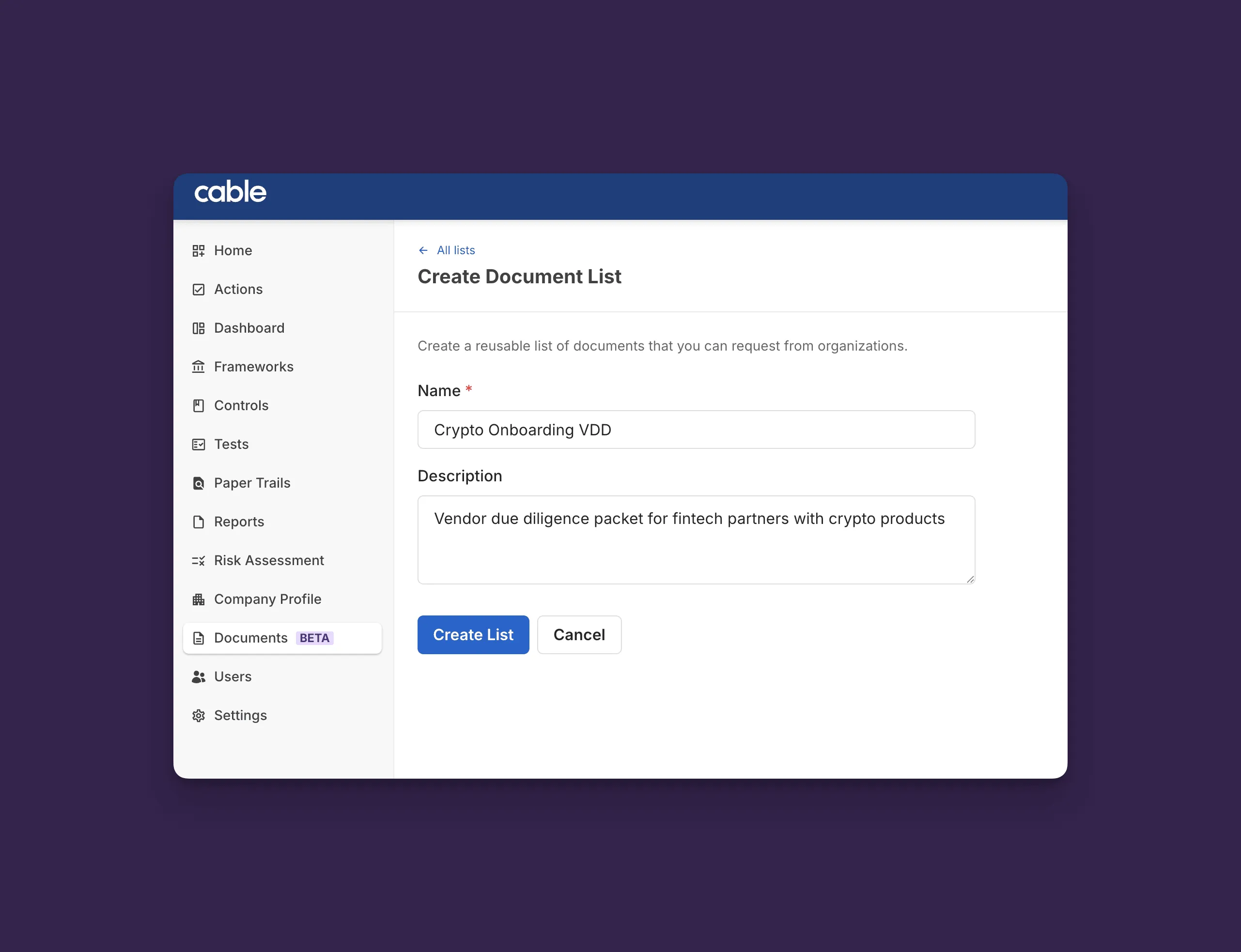
✅ Success: You’ll see “List created - Your document list has been created successfully.”
Adding Documents to Lists
Section titled “Adding Documents to Lists”After creating a list:
- Click on the list to open details
- Click Add Documents
- Select templates from your Documents Library
- Click Add to List
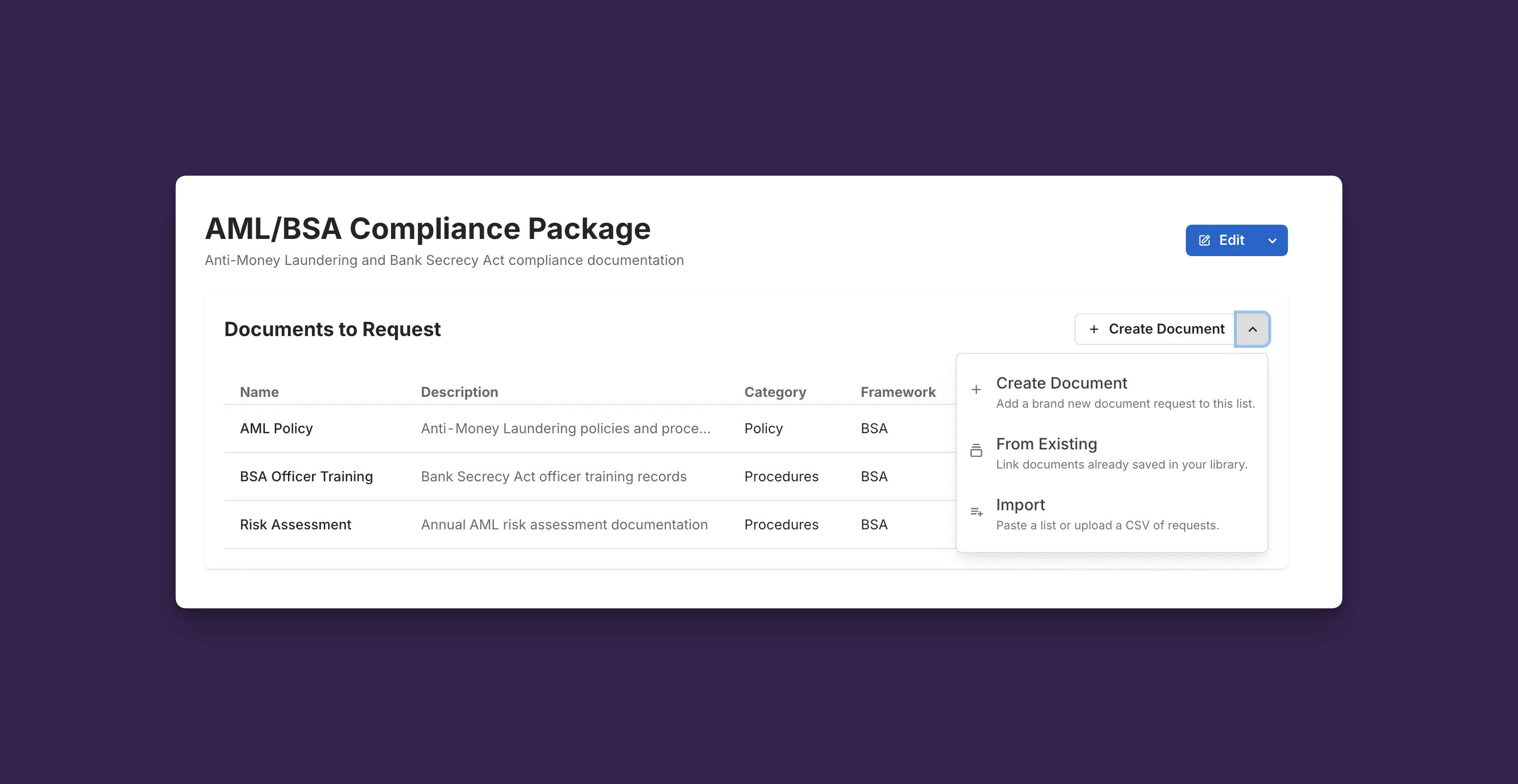
You can add the same document to multiple lists. For example, “AML Policy” might be in both “Onboarding Documents” and “Annual Review Documents.”
💡 Tip: Create lists for recurring needs like quarterly reviews or annual audits. Once set up, you can request the entire package from multiple organizations with just a few clicks.
Requesting from Multiple Organizations
Section titled “Requesting from Multiple Organizations”This is where document lists shine - request an entire package from many partners at once.
To send a bulk request:
- Navigate to Documents → Lists
- Click on the list you want to send
- Click Request from Organizations
- Select which partner organizations should receive these requests
- Review the summary: “Will create up to [X] requests ([Y] documents × [Z] organizations)”
- Click Send Requests
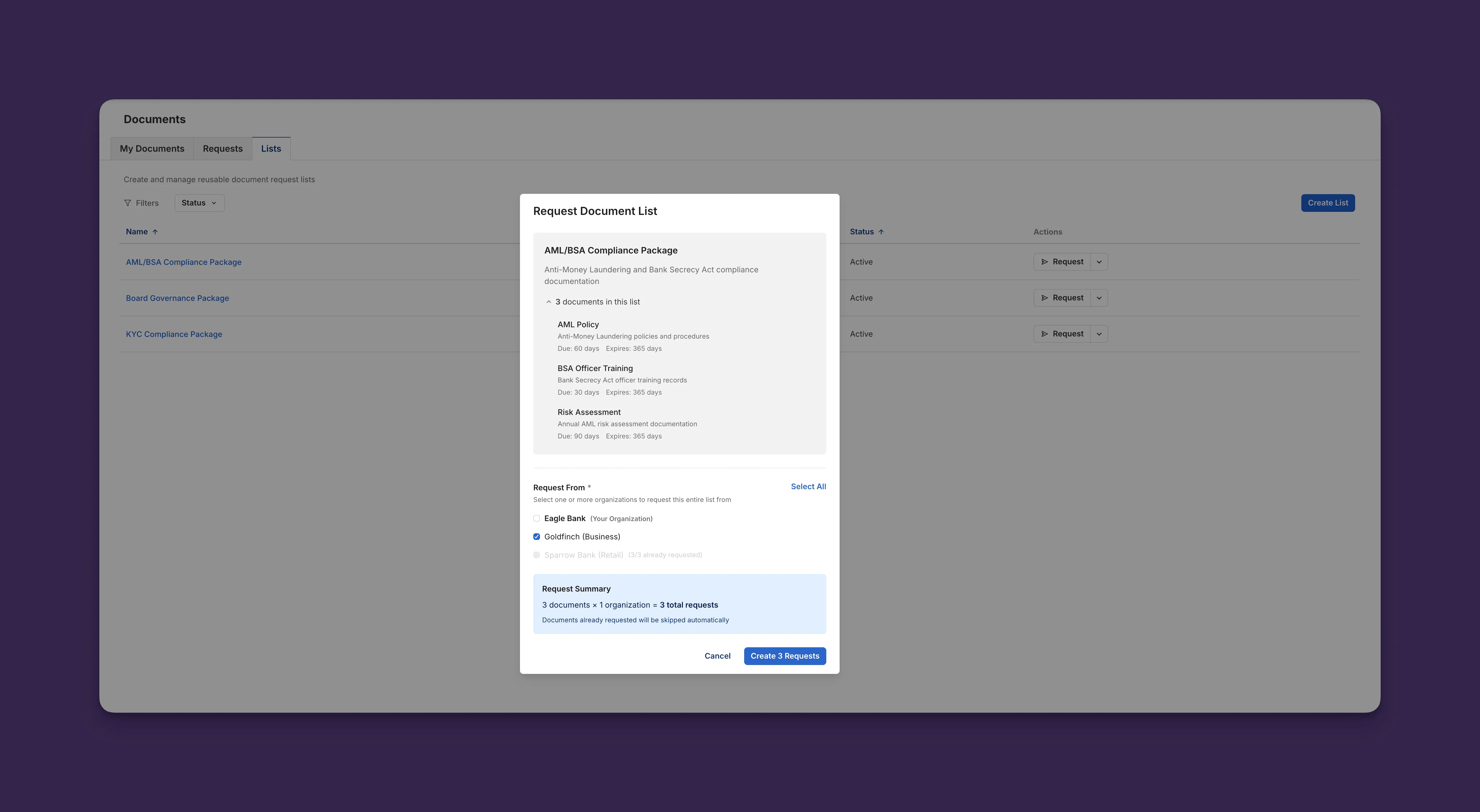
What happens:
- Cable creates individual requests for each document × organization combination
- Each request has its own due date calculated from the list
- If a partner already has an active request for a document, Cable skips it
- Partners receive notifications about their new requests
✅ Success: You’ll see “Created [X] new request(s) ([Y] already existed)” if some requests already existed, or just “Created [X] request(s) successfully” if all were new.
💡 Tip: You can safely re-run a document list request. The system will only create new requests for organizations that don’t already have active requests for those documents.
Example: You create a “Q1 Compliance” list with 10 documents and send it to 20 partners:
- First run: Creates 200 requests (10 × 20)
- If you run it again immediately: Creates 0 new requests (all already exist)
- If you add 5 new partners and re-run: Creates 50 new requests (10 × 5 new partners)